Using App Service Certs in App Gateway with HTML Challenge
The problem
I have a website that I host behind an Azure App Gateway. Naturally, I want a domain name for this, and I want to be able to use HTTPS for it - meaning that I need a certificate. I want to make sure this certificate automatically renews, because I don’t want to spend any more time than necessary updating certs. Additionally, for the purposes of this exercise I don’t have direct control of the DNS zone for my domain - so I am handling DNS changes out of band.
Enter App Service Certificates
Azure App Service Certificates are certificates you can create in Azure, and the platform will take care of renewing them for you. Despite the name, these aren’t restricted to being used with App Service websites - they can also be used with an Azure App Gateway or with Azure Front Door. This post will talk about App Gateway, but the process to use them with Front Door is pretty much the same.
Do not get them confused with App Service Managed Certificates - those are tied to a particular web app, and can’t be used for this (for reference, those are the free certificates that you create directly from a Web App, while the ones we’re talking about are separate resources entirely).
These are issued by GoDaddy, and are not the cheapest option - $70 USD/year buys you a cert for a single (sub)domain, with a year’s worth of automatic renewals baked into that price. (Translate that into whatever currency you use, although the charge was reported as coming from the US when I looked at my Azure billing, so it is a fair assumption that the actual transaction is handled over there).
So, job done, right? You have paid for a certificate, so Azure will just issue it and start automatically renewing it for you? Nope - first you have to perform domain validation.
How domain validation works
When you create a certificate, you need to prove that you own the domain for it (or at least the domain owner has authorized you to issue certificates for them). To allow you to do this, Azure will generate a domain verification token for you when you request a certificate. You will need to use this token and present it in one of a few different places to verify that your domain is in fact yours. This token needs to be in place and up to date at the point Azure tries to issue or renew your certificate - if it’s not there, no cert for you.
This isn’t a one-and-done process. It currently needs to be performed once every 198 days (tying into industry guidelines that say this period needs to be 200 days or less), but this is decreasing over the next few years - after March 2029 you will get a new token and need to put that in place every 10 days or less due to changes in industry standards (https://knowledge.digicert.com/alerts/domain-validation-reuse-changes-in-2026).
There are multiple options for domain verification, but because we are not tying our certificate to a web app, that leaves us with these two:
Option 1: TXT record
You can add a special TXT record in DNS for your domain/subdomain. When Azure tries to issue or renew your certificate, it will check for a TXT record in DNS matching your domain verification token.
Option 2: HTML page
This option requires you to put an HTML page at a particular path on your site, and make it accessible via HTTP (as it needs to be accessible before a certificate has been issued for the site so that the site works over HTTPS).
With App Service certificates, the path is http://<domain>/.well-known/pki-validation/godaddy.html.
The contents of this file will need to be the domain validation token that Azure has issued for you.
This is the option we’re going with for this blog post.
For example, my site is at https://cert-test2.peterwynroberts.com, so my HTML page is at http://cert-test2.peterwynroberts.com/.well-known/pki-validation/godaddy.html.
Our setup
We are going to set up the following:
- A new App Service Certificate for our subdomain
- A Key Vault to store our new cert
- A storage account to host our HTML page as a static site
- Routing config in App Gateway to point the
/well-known/pki-validation/godaddy.htmlpath to our static site
With all of that in place, our final diagram looks a little like this:
Once the certificate and HTTPS listener is fully deployed, we can set up an additional path-based rule to redirect HTTP traffic not intended for
./well-known/pki-validation/godaddy.htmlto HTTPS.
Setup using Bicep
Step 0: Make sure resource providers are registered and fetch Microsoft.Azure.CertificateRegistration object ID
The certificate will be linked to a key vault and imported into the vault automatically.
The identity that’s used for this is the Microsoft.Azure.CertificateRegistration service principal. This should be created in Entra as long as the Microsoft.CertificateRegistration resource provider is registered.
To enable the resource provider to add the certificate to the Key Vault, we will need to grant read/write access to secrets (e.g. by granting it the Key Vault Secrets Officer built-in role on our Key Vault).
The application (client ID) is always ea9f3de1-5e71-48f6-8f96-f3312841e295.
When using Bicep to set the permissions, you will need to find the object ID of the principal, which varies between Entra tenants - search Entra for ea9f3de1-5e71-48f6-8f96-f3312841e295, and then copy the object ID.
Step 1: Initial deployment
NOTE: All code samples below are taken from the repo https://github.com/Sarkimedes/app-gateway-cert-autorenew
The first time our Bicep runs, it will deploy our base resources:
- Key Vault
- Gateway
- App Service
- Virtual Network
- Storage Accout
and it will create a new CertificateOrder resource - this kicks off a request to GoDaddy to issue us a certificate, and will output a domain verification token.
// App Service Certificate Order & Key Vault Binding
resource certificateOrder 'Microsoft.CertificateRegistration/certificateOrders@2022-09-01' = {
  name: certificateOrderName
  location: 'global'
  properties: {
    distinguishedName: 'CN=${customDomainName}'
    autoRenew: true
    productType: 'StandardDomainValidatedSsl'
    validityInYears: 1
    keySize: 2048
  }
  dependsOn: [
    certRegistrationRoleAssignment
  ]
}

resource certificateOrderCert 'Microsoft.CertificateRegistration/certificateOrders/certificates@2022-09-01' = {
  parent: certificateOrder
  name: certificateOrderName
  location: 'global'
  properties: {
    keyVaultId: keyVault.id
    keyVaultSecretName: certificateOrderName
  }
  dependsOn: [
    certRegistrationRoleAssignment
  ]
}
It will also put a placeholder into the key vault for our new certificate, but we will need to get it issued first before we can use it.
The first time round, our application gateway will only deploy the HTTP listener - we also need to make sure the health probe is set up so it looks for a file at /.well-known/pki-validation/godaddy.html, and point it at the static site as a backend.
To set up an Azure Storage account as a static site, we need to use a deploymentScript resource to enable the feature. We can use this to populate godaddy.html as well - the verificationToken comes from the output from the certificateOrder resource:
// Deployment script resource from pki-static-site module
resource deploymentScript 'Microsoft.Resources/deploymentScripts@2020-10-01' = {
  name: deploymentScriptName
  location: location
  kind: 'AzurePowerShell'
  identity: {
    type: 'UserAssigned'
    userAssignedIdentities: {
      '${managedIdentity.id}': {}
    }
  }
  dependsOn: [
    roleAssignmentContributor
    roleAssignmentStorageBlobDataContributor
  ]
  properties: {
    azPowerShellVersion: '16.4'
    scriptContent: loadTextContent('../../scripts/enable-pki-static-website.ps1')
    cleanupPreference: 'OnSuccess'
    retentionInterval: 'PT4H'
    arguments: '-ResourceGroupName "${resourceGroup().name}" -StorageAccountName "${accountName}" -VerificationToken "${verificationToken}"'
  }
}
// Module call for pki-static-site in main.bicep
module storageSite 'modules/pki-static-site.bicep' = {
  name: 'storageSiteDeployment'
  params: {
    location: location
    accountName: storageAccountName
    skuName: 'Standard_LRS'
    verificationToken: certificateOrder.properties.domainVerificationToken
  }
}
# enable-pki-static-website.ps1
param (
    [string] $ResourceGroupName,
    [string] $StorageAccountName,
    [string] $VerificationToken
)

$ErrorActionPreference = 'Stop'

# Create storage context using connected account (RBAC)
$ctx = New-AzStorageContext -StorageAccountName $StorageAccountName -UseConnectedAccount

# Enable static website hosting
Enable-AzStorageStaticWebsite `
    -Context $ctx `
    -IndexDocument 'index.html' `
    -ErrorDocument404Path 'index.html'

# Create and upload godaddy.html containing the verification token
$tempFile = [System.IO.Path]::GetTempFileName()
try {
    Set-Content -Path $tempFile -Value $VerificationToken -NoNewline

    Set-AzStorageBlobContent `
        -File $tempFile `
        -Container '$web' `
        -Blob '.well-known/pki-validation/godaddy.html' `
        -Context $ctx `
        -Properties @{ ContentType = 'text/html' } `
        -Force
}
finally {
    if (Test-Path $tempFile) {
        Remove-Item -Path $tempFile -Force
    }
}
This will result in our site now serving the token to the outside world, proving that it is our domain.
The exact path can vary if your AGW routing config needs to be different (e.g. if you have other sites also needing HTTP listeners) - the hard requirement is that from the outside world, the file appears to be coming from
http://<domain>/.well-known/pki-validation/godaddy.html.
Step 2: DNS
Our App Gateway now has a static IP, so we will need to add a DNS A record to point our site to it. This varies depending on your DNS provider.
If successfully set up, a request to http://<domain>/.well-known/pki-validation/godaddy.html will return our verification token, and our certificate will report domain ownership is verified.
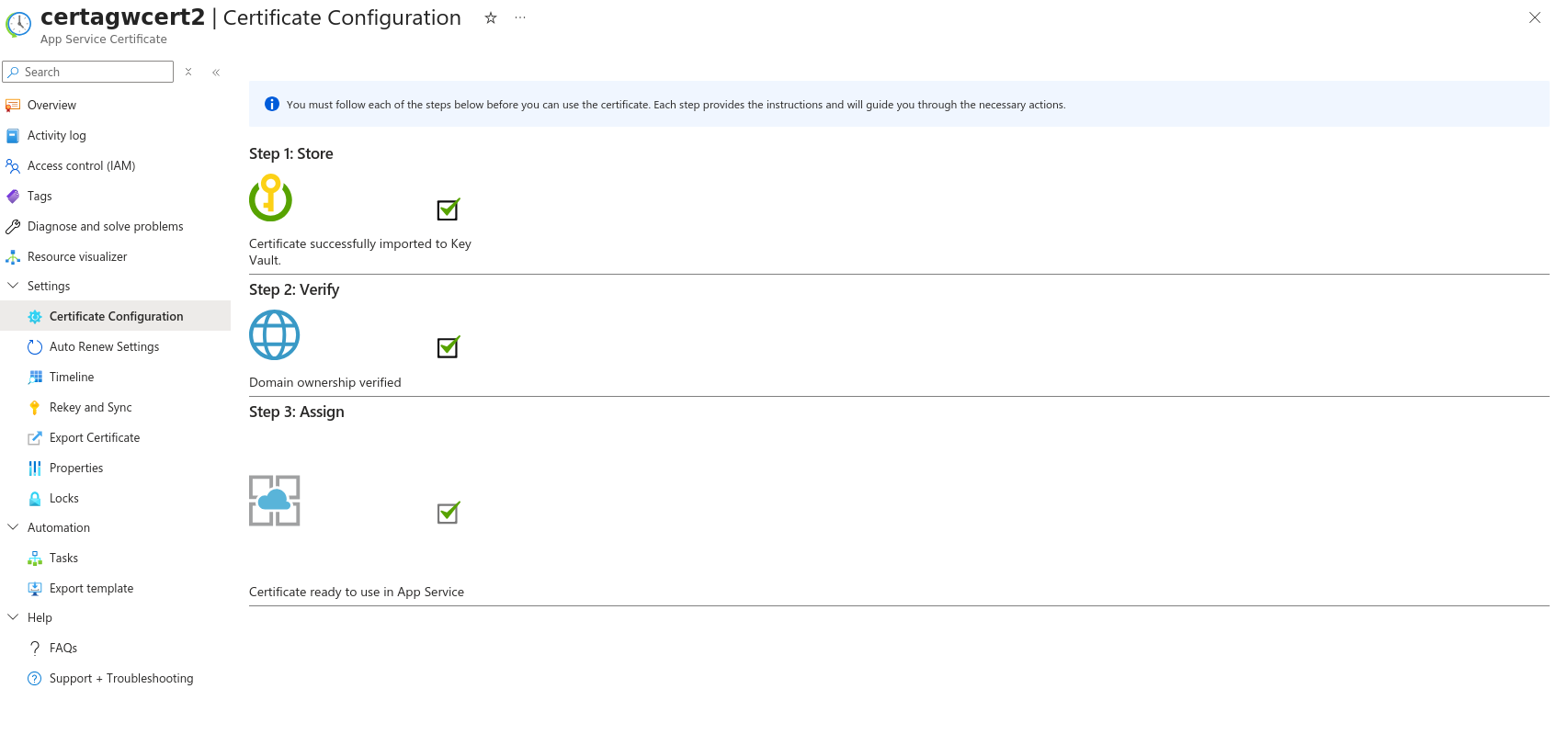

Step 3: Deploy App Gateway HTTPS listener
Now we have a certificate, we need to attach it to the gateway. The way we do that is by setting up an HTTPS listener and link it to the certificate in Key Vault. If you don’t specify a version, AGW will take the latest certificate, so this allows us to handle renewals going forward.
The way the App Gateway resource is constructed in Bicep is as a single resource, so we effectively need to re-run that deployment again to add the new HTTPS listener and point it to our actual website backend.
We will need a deployment flag so that we can specify whether or not to attempt to deploy the gateway with a certificate on any given run - this is important as the HTTPS listener needs a valid certificate to have been issued so it needs to be false on 1st run.
The App Gateway’s User-Assigned Managed Identity also needs the Key Vault Secrets User role (or secret GET permission) to retrieve the cert from Key Vault.
// SSL certificate in App Gateway with KV reference:
sslCertificates: hasSslCert ? [
    {
    name: 'app-service-cert'
    properties: {
        keyVaultSecretId: '${keyVault.properties.vaultUri}secrets/${sslCertificateSecretName}'
    }
    }
] : []
// listener, showing link to sslCertificates child resource
httpListeners: concat([
       {
        name: 'http-basic'
        // elided - this was deployed in step 1
      }
    ], hasSslCert ? [
      {
        name: 'https-basic'
        properties: {
          frontendIPConfiguration: {
            id: resourceId('Microsoft.Network/applicationGateways/frontendIPConfigurations', 'agw-${projectName}', 'appGwPublicFrontendIpIPv4')
          }
          frontendPort: {
            id: resourceId('Microsoft.Network/applicationGateways/frontendPorts', 'agw-${projectName}', 'port_443')
          }
          protocol: 'Https'
          requireServerNameIndication: false
          sslCertificate: {
            id: resourceId('Microsoft.Network/applicationGateways/sslCertificates', 'agw-${projectName}', 'app-service-cert')
          }
        }
      }
    ] : [])
// routing rule, linking listener to web app backend
requestRoutingRules: concat([
      {
        // HTTP rule elided - used to point to storage account
      }
    ], hasSslCert ? [
      {
        name: 'https-default'
        properties: {
          ruleType: 'Basic'
          priority: 101
          httpListener: {
            id: resourceId('Microsoft.Network/applicationGateways/httpListeners', 'agw-${projectName}', 'https-basic')
          }
          backendAddressPool: {
            id: resourceId('Microsoft.Network/applicationGateways/backendAddressPools', 'agw-${projectName}', 'web-app')
          }
          backendHttpSettings: {
            id: resourceId('Microsoft.Network/applicationGateways/backendHttpSettingsCollection', 'agw-${projectName}', 'web-app-settings')
          }
        }
      }
    ] : [])
Once this is done, you should see your actual site come up. The site will report that it has a valid HTTPS certificate, issued by GoDaddy.
Ongoing maintenance
We need to ensure that our domain verification token remains up to date - every 198 days, we will get a new token (and this interval will eventually decrease to every 10 days). We need to make sure we are presenting the new token at the point the certificate attempts to renew, or automatic renewal will fail.
To automate this, set up a scheduled job to fetch the verification token and set our godaddy.html file up with it e.g. using an Azure DevOps/GitHub Actions pipeline.
# 1. Fetch domain verification token
$token = az resource show `
    --resource-group $ResourceGroupName `
    --resource-type "Microsoft.CertificateRegistration/certificateOrders" `
    --name $CertificateOrderName `
    --query "properties.domainVerificationToken" `
    --output tsv

if ([string]::IsNullOrWhiteSpace($token)) {
    throw "Unable to retrieve domain verification token for '$CertificateOrderName'."
}

Write-Host "Domain Verification Token : $token" -ForegroundColor Green

# 2. Write token to local file and upload to storage account $web container
Set-Content -Path $OutputFile -Value $token -NoNewline

az storage blob upload `
    --account-name $StorageAccountName `
    --container-name '$web' `
    --name '.well-known/pki-validation/godaddy.html' `
    --file $OutputFile `
    --content-type 'text/html' `
    --overwrite `
    --auth-mode login`
    --output none
Final thoughts
There are a whole bunch of options for fronting up a website with a certificate - far too many for me to go into here. This way of doing it makes sense for a particular use case where:
- I need something that I can tie into an Azure App Gateway
- The DNS zone linked to my custom domain is handled elsewhere, and I have limited options for automating it
If you have control and automation around your DNS zone, I would probably go with the TXT validation option (instead of setting up the static site, add a specially-constructed TXT record to your DNS zone). Remember that the domain validation just has to be up to date at the point that Azure tries to renew the cert, so you can afford a slight delay in DNS propagation time here. If your CA supports the ACME protocol, then using certbot or a similar client is also a cheaper option (as long as you don’t mind having one more thing to manage) - https://github.com/AdapptOnAzure/Azure-Automated-ACME has an example using an Azure Function to perform ACME requests, which is worth checking out.